Network Interfaces
Network interfaces are virtual network adapters that connect virtual machines to virtual networks. Each network interface can be associated with a virtual network and security groups, and each virtual machine can have multiple network interfaces to support complex networking scenarios.
What are Network Interfaces? 🔌
A Network Interface is a virtual network adapter that provides network connectivity for virtual machines. It acts as the bridge between the virtual machine's operating system and the virtual network infrastructure.
Key Features
- Single Virtual Network Association: Each network interface can only be associated with exactly one virtual network
- Security Group Binding: Multiple security groups can be attached to control traffic
- Multi-Interface Support: Virtual machines can have multiple network interfaces, each connected to different virtual networks
- IP Address Management: Automatic IP assignment based on network type
- Hot Plug Support: Interfaces can be added or removed while the VM is running
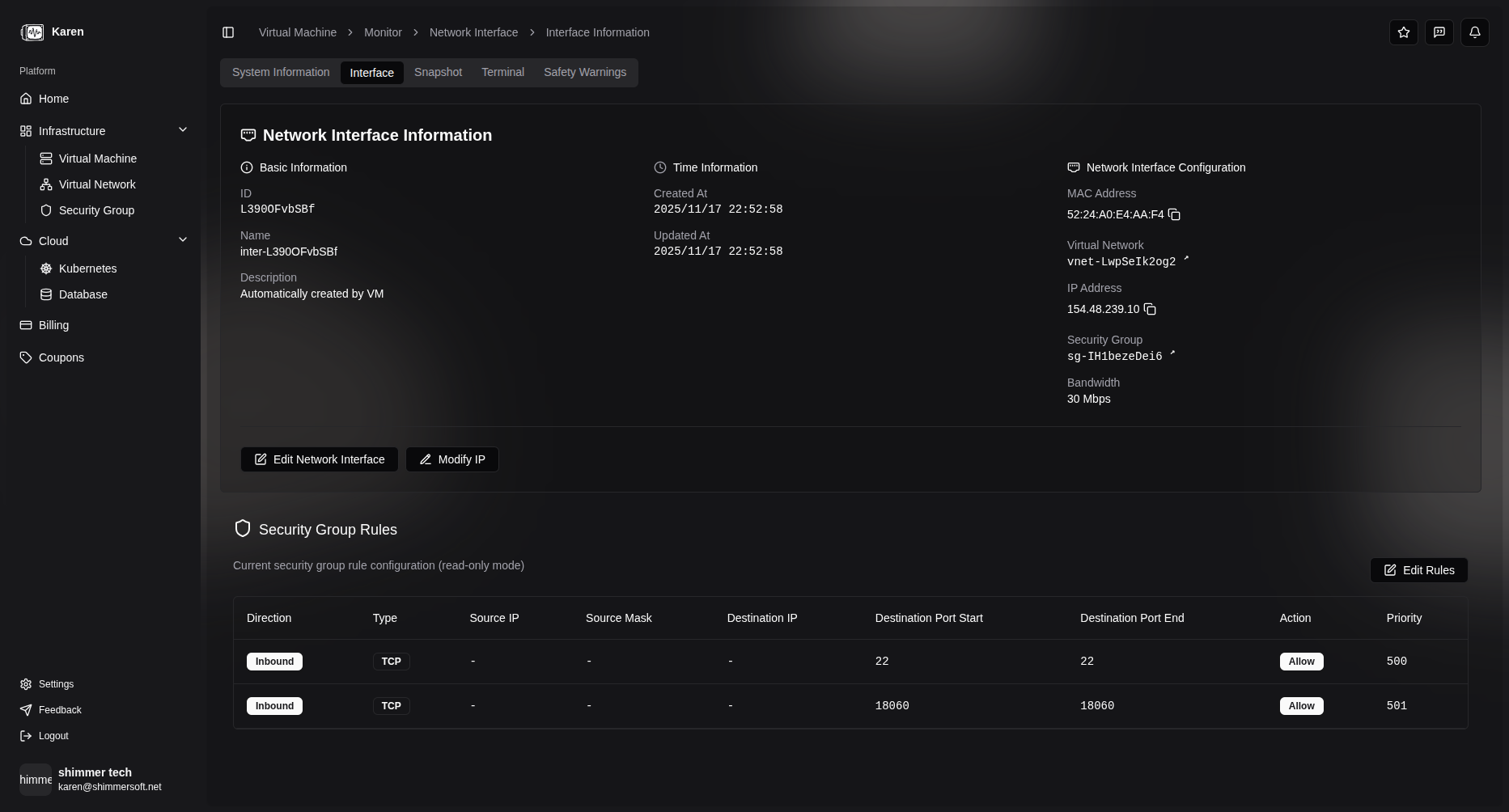
Network Interface Configuration ⚙️
Creating Network Interfaces
- Access VM Management: Navigate to the virtual machine details page
- Network Interface Tab: Click on "Network Interfaces"
- Add Interface:
- Click "Add Network Interface"
- Select the virtual network to connect
- Choose security groups to attach
- IP address assignment is automatic based on network type
- Confirm Configuration: Save the network interface settings
Associating with Virtual Networks
Network interfaces must be associated with a virtual network to function. IP address assignment varies based on the network type:
Bridge Network (Public Network)
- Automatic Public IP Assignment: When associating with a public network, we automatically assign a public IP address to the network interface
- Direct External Connectivity: The assigned IP provides direct internet access
- Dynamic Allocation: IP addresses are assigned from the available public IP pool
NAT Network (Private Network)
-
Private IP Assignment: When associating with a NAT network, we assign private IP addresses from the network's allocated C-class subnet
-
Free C-Class Allocation: Each virtual network receives one free C-class subnet (256 IP addresses) for private use
-
Random Selection: IP addresses are randomly selected from available addresses within the NAT network's subnet
-
Network Isolation: Private IPs provide isolated communication within the virtual network
-
Network Selection: Choose the appropriate network type based on your requirements
Security Group Association
Security groups control inbound and outbound traffic for network interfaces:
- Multiple Groups: Attach multiple security groups to a single interface
- Rule Priority: Rules are evaluated in order of priority
- Dynamic Updates: Security group changes apply immediately
- Stateful Filtering: Return traffic is automatically allowed
Multi-Interface Virtual Machines 🖥️
Benefits of Multiple Interfaces
- Network Segmentation: Separate public and private traffic
- Load Balancing: Distribute traffic across multiple networks
- High Availability: Redundant network connections
- Security Isolation: Different security policies per interface
Configuration Examples
Example 1: Web Server with Database Access
A web server VM with two interfaces:
- Interface 1: Connected to public bridge network for external access
- Interface 2: Connected to private NAT network for database communication
Example 2: Application with Management Access
An application server with three interfaces:
- Interface 1: Public network for application traffic
- Interface 2: Private network for internal services
- Interface 3: Management network for administrative access
Managing Network Interfaces 🛠️
Viewing Interface Details
- IP Address: Current assigned IP address
- MAC Address: Hardware address of the interface
- Network: Associated virtual network
- Security Groups: Attached security groups
- Status: Connection status and traffic statistics
Modifying Interfaces
- Change Networks: Move interface to different virtual network
- Update Security Groups: Add or remove security group associations
- IP Configuration: Modify IP address settings
- Enable/Disable: Temporarily disable interface connectivity
Best Practices 📋
- Plan Network Topology: Design your network architecture before creating interfaces
- Use Descriptive Names: Label interfaces clearly for management
- Security First: Always attach appropriate security groups
- Monitor Traffic: Regularly check interface statistics
- Backup Configurations: Document your network interface setups
Troubleshooting 🔧
Common Issues
- No Connectivity: Check virtual network configuration and security groups
- IP Conflicts: Verify IP address assignments don't overlap
- Security Block: Review security group rules for blocked traffic
- Performance Issues: Monitor network utilization and adjust configurations
Diagnostic Steps
- Verify virtual network status
- Check security group rules
- Confirm IP address configuration
- Test connectivity from the virtual machine
- Review system logs for network errors