Virtual Networks Introduction
Virtual networks are a core networking component in Karen Cloud Services, providing network connectivity and external access capabilities for virtual machines. Through virtual networks, you can create isolated network environments, configure security group rules, and manage network interfaces.
What are Virtual Networks? 🤔
A Virtual Network is an abstraction of the network environment for virtual machine instances. It allows you to create logically isolated network spaces in the cloud environment, where each virtual network can contain multiple virtual machine instances and control network traffic through security groups.
Network Types
Karen Cloud Services support the following network types:
- Bridge Network: Virtual machines connect directly to the physical network and can obtain the same network access permissions as physical machines
- NAT Network: Provides network access through Network Address Translation, where virtual machines are located in a private network and access external networks through a NAT gateway
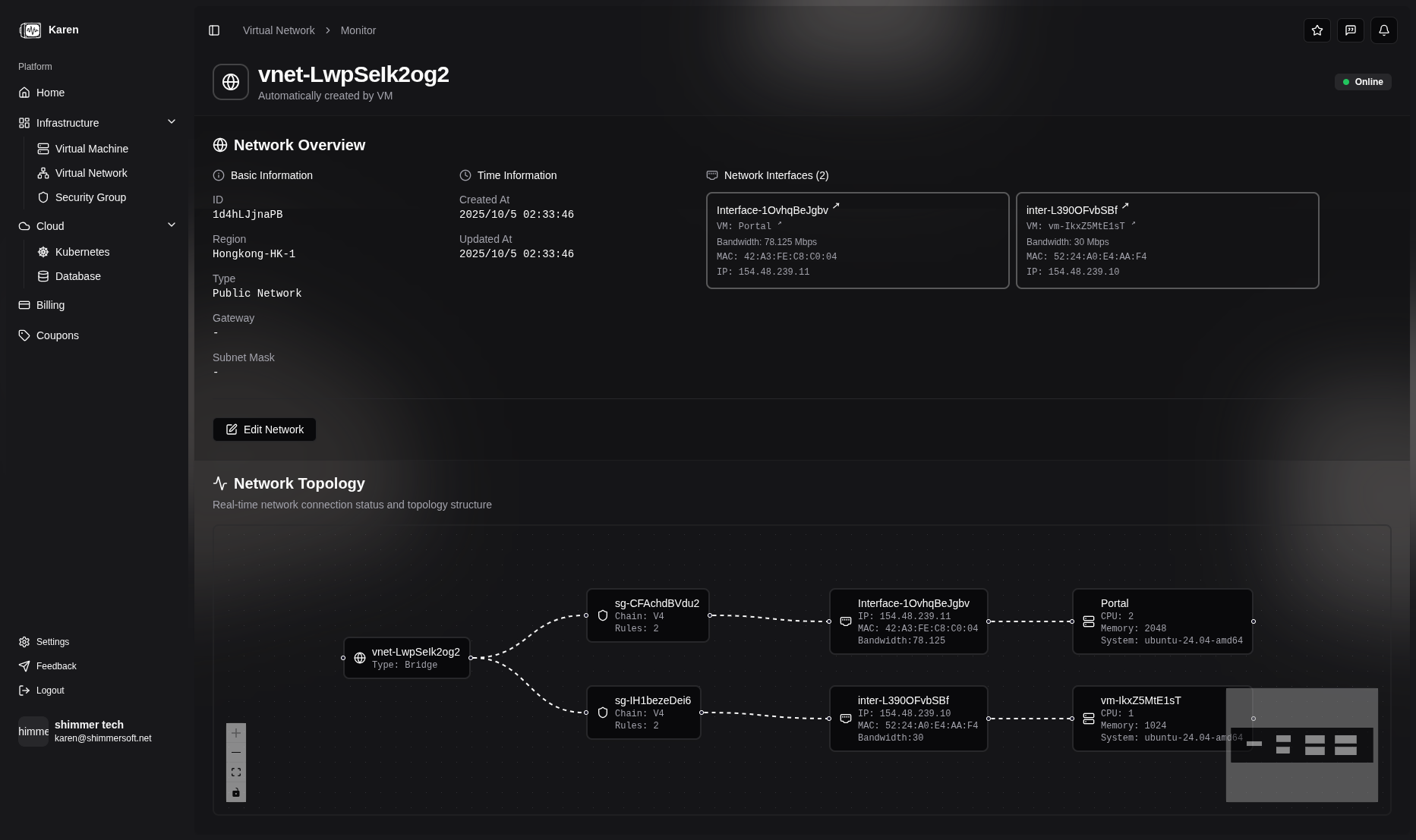
Creating and Managing Virtual Networks 🛠️
Creating a Virtual Network
- Log in to Console: Access the Karen platform and log in to your account
- Access Network Page: Click "Virtual Networks" in the sidebar
- Create Network:
- Click the "Create Network" button
- Fill in network information:
- Name: Set an easily identifiable name for the network
- Description: Optional network description
- Type: Choose Bridge or NAT network
- Region: Select the geographic region for network deployment
- Confirm Creation: Check the configuration and click create
Managing Virtual Networks
After creating a virtual network, you can perform the following management operations:
View Network Details
- Network Information: Name, description, type, region, creation time
- Connected Virtual Machines: View the list of virtual machines currently connected to this network
- Network Configuration: IP address range, gateway, DNS settings
Edit Network
- Modify Name and Description: Update basic network information
- Change Configuration: Adjust network parameters as needed (some configurations may require restarting related virtual machines)
Delete Network
- Prerequisites: Ensure no virtual machines are connected to the network
- Delete Operation: Select the network and click delete, confirm to complete deletion
Virtual Machines and Virtual Networks 💻
Virtual machines connect to virtual networks through network interfaces. While each network interface can only be associated with one virtual network, virtual machines can connect to multiple virtual networks simultaneously.
Multi-Network Virtual Machine Creation
When creating a virtual machine, you can select multiple virtual networks. The system will automatically create a separate network interface for each selected virtual network:
- Network Selection: Choose one or more virtual networks during VM creation
- Automatic Interface Creation: Each selected network gets its own dedicated network interface
- Independent Configuration: Each interface can have different security groups and IP configurations
- Network Isolation: Traffic between different networks is completely isolated
Network Interfaces 🔌
Network interfaces are the bridge for virtual machines to connect to virtual networks. Each virtual machine can have multiple network interfaces to achieve multi-network connectivity.
IP Address Assignment
When creating network interfaces, IP address assignment varies based on the network type:
Public Network (Bridge Network)
- Automatic IP Assignment: When associating a network interface with a public network, we automatically assign a public IP address to the interface
- Direct External Access: The assigned IP provides direct connectivity to the internet
- Dynamic Allocation: IP addresses are assigned from the available public IP pool
NAT Network (Private Network)
- Private IP Assignment: When associating with a NAT network, we assign private IP addresses from the network's allocated C-class subnet
- Free C-Class Allocation: Each virtual network receives one free C-class subnet (256 IP addresses) for private use
- Random Selection: IP addresses are randomly selected from the available addresses within the NAT network's subnet
- Network Isolation: Private IPs provide isolated communication within the virtual network
Adding Network Interfaces
- Access VM Details: Select the target virtual machine from the virtual machine list
- Access Interface Page: Click the "Interfaces" tab
- Add Interface:
- Click the "Add Interface" button
- Select Virtual Network: Choose from available networks (Public or NAT)
- Configure Security Group: Select or create security group rules
- IP Address Assignment: Automatic assignment based on network type (cannot be manually specified)
- Confirm Addition: Check configuration and complete addition
Managing Network Interfaces
View Interface Information
- Interface Details: MAC address, IP address, connection status
- Network Information: Associated virtual network, security group configuration
- Traffic Statistics: Network traffic usage of the interface
Modify Interface Configuration
- Change Security Group: Update associated security group rules
- Adjust IP Configuration: Modify IP address assignment method
- Enable/Disable Interface: Control interface activation status
Delete Network Interface
- Remove Interface: Select interface and click delete
- Notes: Ensure interface removal does not affect VM network connectivity
Network Configuration Best Practices 💡
Network Isolation
- Group by Function: Place virtual machines of different purposes in different virtual networks
- Security Layering: Use multi-layer network structures to enhance security
Security Group Configuration
- Principle of Least Privilege: Only open necessary ports and protocols
- Regular Review: Regularly check and update security group rules
Performance Optimization
- Bandwidth Planning: Reasonably allocate network bandwidth based on application requirements
- Traffic Monitoring: Regularly check network usage and adjust configuration in time
Troubleshooting 🔧
Common Network Issues
VM Cannot Access External Network
- Check Network Type: Confirm virtual network configuration is correct
- Verify Security Group Rules: Ensure outbound rules allow necessary traffic
- Check Interface Status: Confirm network interface is properly connected
VMs Cannot Communicate with Each Other
- Network Connectivity: Confirm VMs are in the same virtual network
- Security Group Configuration: Check if security group rules block internal communication
- Interface Configuration: Verify network interface IP configuration is correct
Network Latency or Packet Loss
- Bandwidth Limits: Check if VM bandwidth configuration is sufficient
- Network Load: Monitor network traffic usage
- Physical Network: Contact support to check underlying network status
Getting Help
If you encounter network issues that cannot be resolved on your own:
- Check Monitoring Data: Review monitoring metrics for VMs and networks
- Submit Feedback: Describe the issue in detail through the feedback system
- Contact Technical Support: Provide relevant configuration information and error logs